


Download Google Hangouts Chrome Extension – Free Instant Messaging, Video Calls & Secure Collaboration
Overview
Google Hangouts Chrome Extension brings the power of Google’s instant messaging and videoconferencing platform directly to your desktop browser. Once you’re signed in with your Google account, the extension sits neatly in the Chrome toolbar, offering a lightweight, always‑ready window for chat, file sharing, emojis, and up‑to‑10‑person video calls. Whether you’re a remote worker juggling multiple conversations, a student coordinating group projects, or a friend who simply likes to stay in touch, Hangouts provides a seamless bridge between Gmail, Google +, and the Chrome ecosystem.
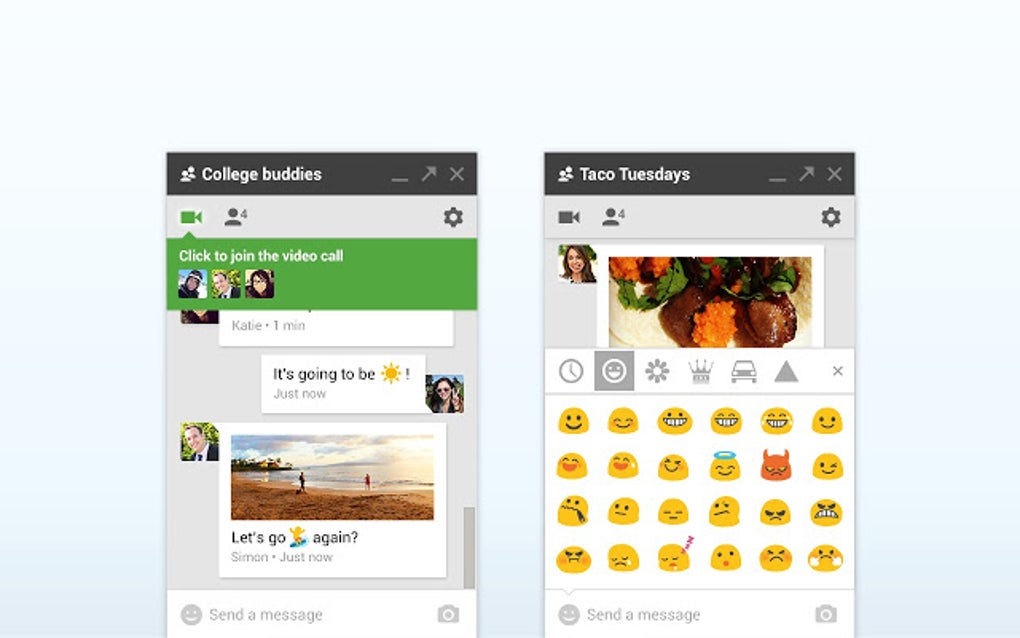
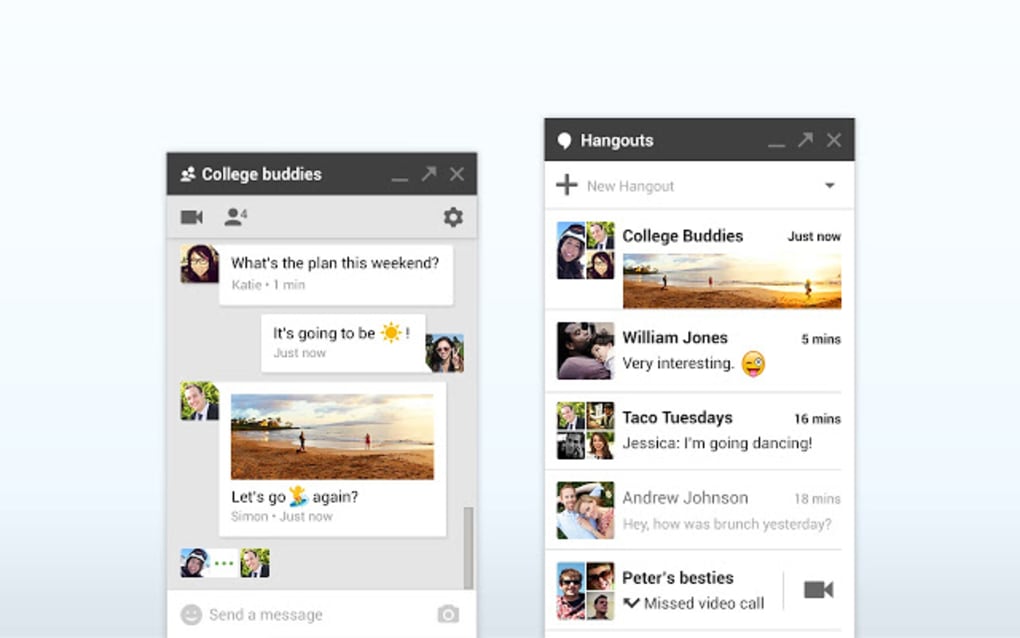
The extension’s design is intentionally minimalist—just a contact list, a search bar, and a clean chat pane—so you can focus on the conversation instead of navigating cluttered menus. Integrated with YouTube and Google Drive, Hangouts lets you drop a video link or a shared document into the chat with a single click, turning ordinary messages into collaborative sessions. While the tool is free, it benefits from Google’s robust security infrastructure, meaning your chats are encrypted and your data stays within the trusted Google environment.
The only trade‑off is that the Chrome browser must stay open for the extension to function, and audio‑only calls are not supported at this time. Nevertheless, for anyone already invested in the Google ecosystem, the Hangouts Chrome Extension is a convenient, secure, and cost‑free way to keep conversations flowing without leaving the desktop.
Key Features
- Instant Messaging: Real‑time text chat with support for emojis, stickers, and GIFs.
- Group Conversations: Create one‑to‑one or group chats with unlimited members.
- Video Conferencing: Host video calls with up to 10 participants, complete with screen sharing.
- Google Drive Integration: Drag and drop files from Drive directly into a conversation.
- YouTube Sharing: Play shared YouTube videos within the call window for collaborative viewing.
- Minimalist UI: A compact side‑panel that can be minimized to the notification area.
- Cross‑Platform Sync: Messages appear instantly on Gmail, Android, iOS, and the Chrome extension.
- Secure Encryption: End‑to‑end encryption for chats and video streams.
- Customizable Notifications: Choose sound alerts, badge counts, or silent mode per conversation.
- Free Updates: Automatic updates via Chrome Web Store keep the extension current.
Installation & Daily Usage Guide
Step‑by‑Step Installation
Getting Google Hangouts up and running is straightforward. First, open Google Chrome and navigate to the Chrome Web Store. Search for “Google Hangouts” or follow the direct link provided by Google’s official site.
Click the “Add to Chrome” button, then confirm the installation prompt. The extension will download and automatically appear as an icon in the upper‑right corner of your browser toolbar. Because Hangouts relies on your Google account, you’ll be asked to sign in (or confirm the existing sign‑in) after the installation completes.
Once authenticated, the extension will load your contact list from Google Contacts, ready for instant interaction.
Using the Extension Efficiently
After installation, simply click the Hangouts icon to open the chat window. The left pane displays your recent contacts and a search bar; type a name or email to start a new conversation. To send a message, type in the text field and press Enter.
You can attach images, files from Google Drive, or embed a YouTube link using the paper‑clip and video icons respectively. For a video call, click the camera icon next to a contact’s name; a larger window will launch, showing your video feed and the participants’ feeds. During a call, you can mute your microphone, turn off video, or share your screen via the control bar at the bottom.
When you’re finished, close the window or minimize it to the notification area, where it will continue to run in the background, ready to alert you to new messages. Because the extension stays linked to Chrome, any changes you make—like renaming a contact group or adjusting notification settings—sync instantly across all devices where you use Hangouts.
Compatibility, Pros & Cons
The Google Hangouts Chrome Extension is compatible with any operating system that supports Google Chrome, including Windows 10/11, macOS, Linux distributions, and Chrome OS. Mobile users can enjoy the same experience via the dedicated Hangouts app for Android and iOS, but the desktop extension requires the Chrome browser to remain open.
Pros
- Free to download and use—no hidden subscription fees.
- Deep integration with Gmail, Google Drive, and YouTube enhances productivity.
- Secure, Google‑backed encryption protects privacy.
- Supports up to 10‑person video calls with screen sharing.
- Lightweight UI that doesn’t consume excessive system resources.
- Automatic updates through Chrome Web Store keep features current.
Cons
- Audio‑only calls are not available; users must start a video call for voice communication.
- Chrome must remain open for the extension to function, which can be a limitation on low‑resource machines.
- No native desktop notifications outside of Chrome’s environment.
- Feature set is more basic compared to dedicated video‑conference platforms like Zoom or Microsoft Teams.
Frequently Asked Questions
Is the Google Hangouts Chrome Extension really free?
Yes. The extension can be downloaded from the Chrome Web Store at no cost, and all core messaging and video‑call features are free for personal and business use.
Can I use Hangouts without an internet connection?
No. Hangouts relies on Google’s cloud services, so an active internet connection is required for messaging, file sharing, and video calls.
How secure are my chats on Hangouts?
Google encrypts Hangouts traffic in transit and at rest, using the same security protocols that protect Gmail and Google Drive. While not end‑to‑end encrypted by default, the service meets industry standards for data protection.
Can I integrate third‑party apps like Slack or Trello with Hangouts?
Direct integration is limited to Google’s own services (Drive, YouTube, Calendar). However, you can share links to Slack, Trello, or other platforms within a Hangouts conversation, enabling quick cross‑tool collaboration.
What should I do if the extension stops working?
First, ensure Chrome is up to date. Then, right‑click the Hangouts icon, select “Remove from Chrome,” and reinstall it from the Web Store. If problems persist, clearing Chrome’s cache or disabling conflicting extensions often resolves the issue.
Conclusion & Call to Action
The Google Hangouts Chrome Extension offers a solid, free solution for anyone who lives within the Google ecosystem and needs quick, secure instant messaging and video conferencing from the desktop. Its minimalist design, tight integration with Drive and YouTube, and reliable encryption make it a practical choice for both personal chats and light‑weight collaboration. While the lack of audio‑only calls and the requirement for Chrome to stay open are notable limitations, the overall value remains high—especially for users who already rely on Gmail, Google Calendar, and other Google services.
If you’re looking for a straightforward way to keep conversations flowing without juggling multiple apps, click the download button below, install the extension, and start chatting instantly. Stay connected, stay secure, and make the most of Google’s free communication suite today.
Google Hangouts Chrome Extension delivers reliable messaging and video calls in a lightweight package. Its integration with Google Drive and YouTube streamlines collaboration, though the inability to make audio‑only calls and the Chrome‑only requirement keep it from a perfect score. Overall, it’s a free, secure, and easy‑to‑use tool for anyone already using Google services.







